How chat sessions work
The short answer
A chat session lets you ask Orbit's AI to change your website. You can request several changes during the same session.
Starting oneLink to “Starting one”
- Tap Edit at the top of Orbit, then Open editor.
- In the chat, tap Start chat session. If you don't see the chat, tap Chat in the editor's bar.
- Type what you want, such as "Change our Saturday hours", and tap Send.
Ask for one change after another. Undo takes back the last one, and Undo all takes back every change in the session. Your changes wait in your draft until you tap Publish. Then they're live.
Changing things by hand uses no chat session.
How many you getLink to “How many you get”
- Orbit Basic: three a week.
- Orbit Free: one a week.
- On Orbit Basic, you also get three bonus sessions in the first month after you create your account.
- Sessions you don't use don't carry over to the next week.
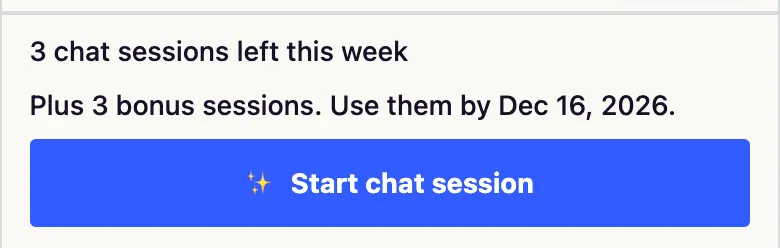
The Edit page and the chat both show how many you have left.
What ends a sessionLink to “What ends a session”
- You tap End.
- You send no message for 30 minutes.
- It has run for 50 minutes.
- It's used up. The ring beside the message box shows how much is left. Start a new chat ends it and starts your next session.
When none are leftLink to “When none are left”
Orbit tells you, "You have no chat sessions left," and shows the day your next one is ready. Until then, you can still make changes by hand.